Definitions
Important
To use the free functionality of the extension in a Business Central Production environment a subscription for the Custom Fields Free product is required.
You can test out all features without a subscription in a Business Central Sandbox environment.
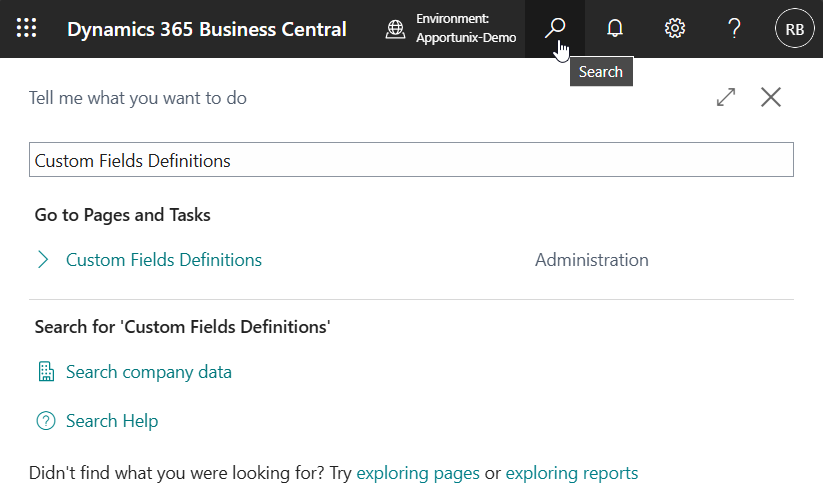
To set up and configure definitions of custom fields use the Tell Me search feature (Alt+Q, or click on the ‑icon in the top right corner) to search for and open the Custom Fields Definitions page.
Basic Setup
On the Custom Fields Definitions page you can set up and configure custom fields for various entities and documents in Microsoft Dynamics 365 Business Central.
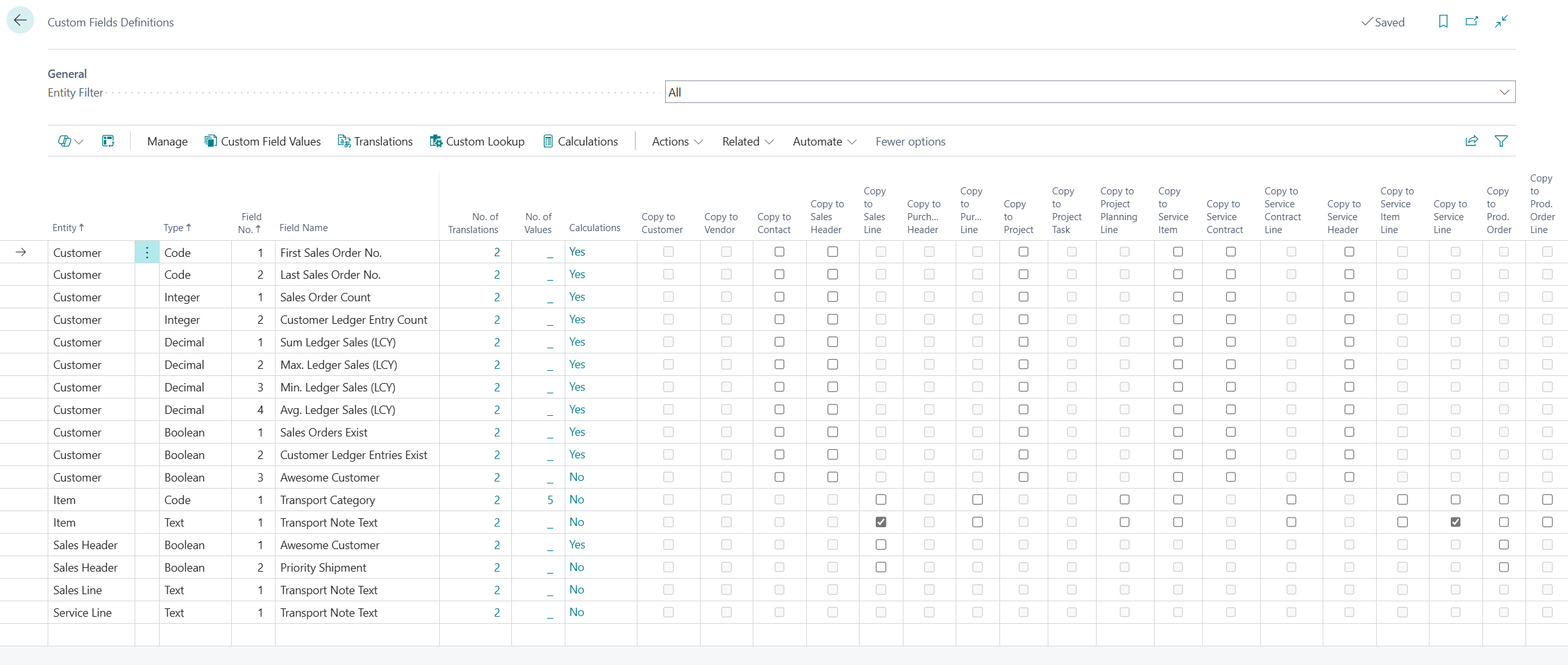
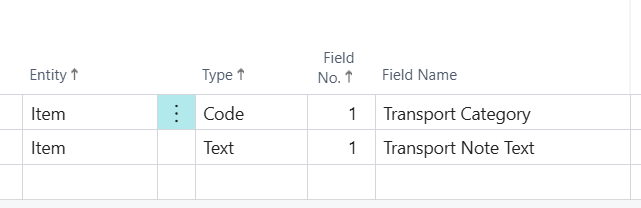
To set up a custom field, select a target entity (using the Entity field, e.g., "Item"), a datatype for the field (using the Type field, e.g., "Text"), and a name for the field (using the Field Name field, e.g., "Transport Note").
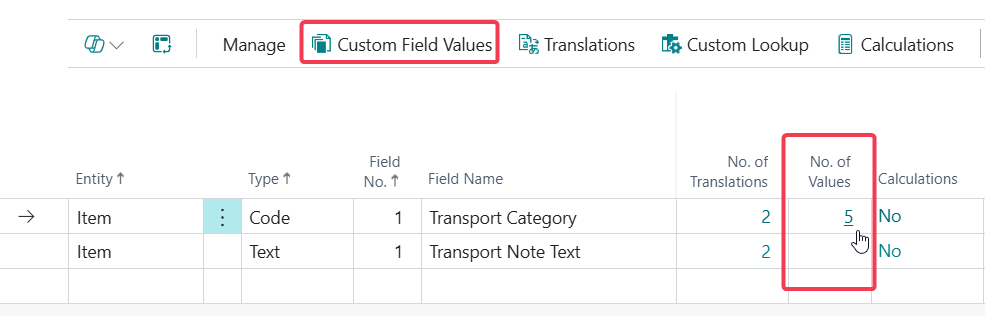
For custom fields of type Code, you can also configure a list of valid values for the field. To edit the valid values for a Code field you can invoke the Custom Field Values action, or drill-down on the No. of Values field. For more information, please see the Supported Data Types | Code section.
Translations
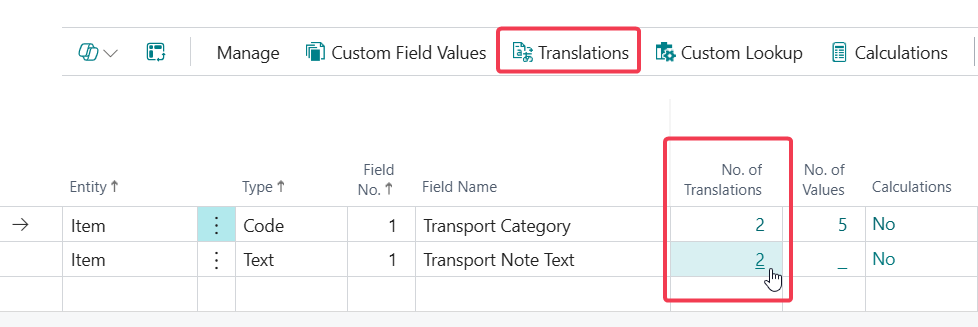
If you would like to configure translations for your custom field, then you can either invoke the Translations action, or drill-down on the No. of Translations field on the Custom Fields Definitions page.
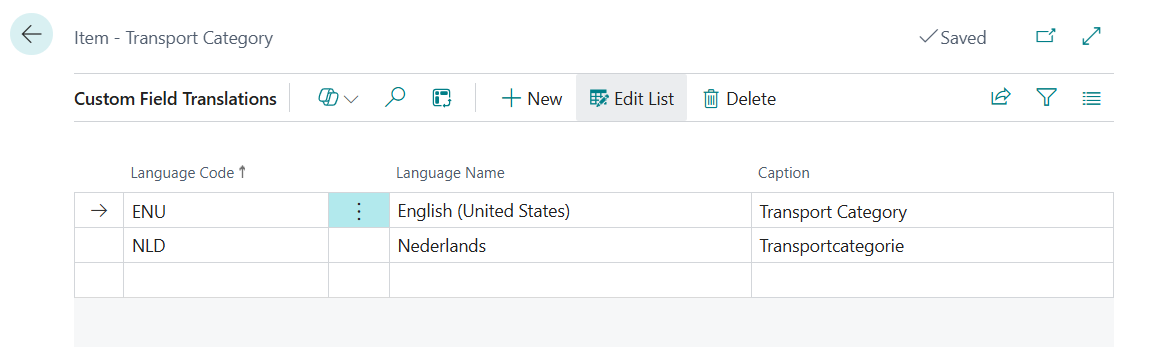
On the Custom Field Translations page that opens you can view and edit the translations for the caption of the custom field.
Supported Entity Types
The supported entity types depend on whether you are using the Free version or the Pro version of Apportunix Custom Fields. This section describes the supported entities for each version.
Important
You can use all features of the Apportunix Custom Fields extension, for free, without a subscription or trial period, when working in a Business Central online Sandbox environment.
Using additional features licensed through additional products require a subscription for the product in a Business Central Production environment.
Free - Basic Entities
The following entities/documents are supported with the Free version:
- Items
- Resources
- Contacts
- Customers
- Vendors
- Sales Headers
- Sales Lines
- Purchase Headers
- Purchase Lines
- Projects
Pro - All Entities
On top of the entities/documents that are supported with the Free version, the following entities/documents are also supported with the Pro version:
- Project Tasks
- Project Planning Lines
- Service Items
- Service Contract Headers
- Service Contract Lines
- Service Headers
- Service Item Lines
- Service Lines
- Production Orders
- Production Order Components
- Production BOMs
- Production BOM Lines and Production BOM Version Lines
- Fixed Assets
- Serial/Lot No. Information
- Assembly BOMs
- Assembly Quotes
- Assembly Orders
Supported Number of Fields
The supported number of fields depend on whether you are using the Free version or the Pro version of Apportunix Custom Fields. This section describes the supported number of fields for each version.
Free - 30 Fields (5 per Data type)
You can set up to 5 custom fields, per entity, per data type with the Free version of the Apportunix Custom Fields extension. As described in the Supported Data Types section, there are 6 different data types, which means that you can configure up to 30 custom fields per entity.
Pro - 60 Fields (10 per Data type)
You can set up to 10 custom fields, per entity, per data type with the Pro version of the Apportunix Custom Fields extension. As described in the Supported Data Types, there are 6 different data types, which means that you can configure up to 60 custom fields per entity.
Supported Data Types
You can set up custom fields for the following data types:
Boolean (Checkbox)
A Boolean field holds a value that can be either true or false. In the Business Central client this is displayed on pages as a checkbox that can be enabled or disabled.

Code
A Code field holds a textual value that can consist of capitalized letters, digits and underscores. The maximum length of a custom Code field is 20 characters.
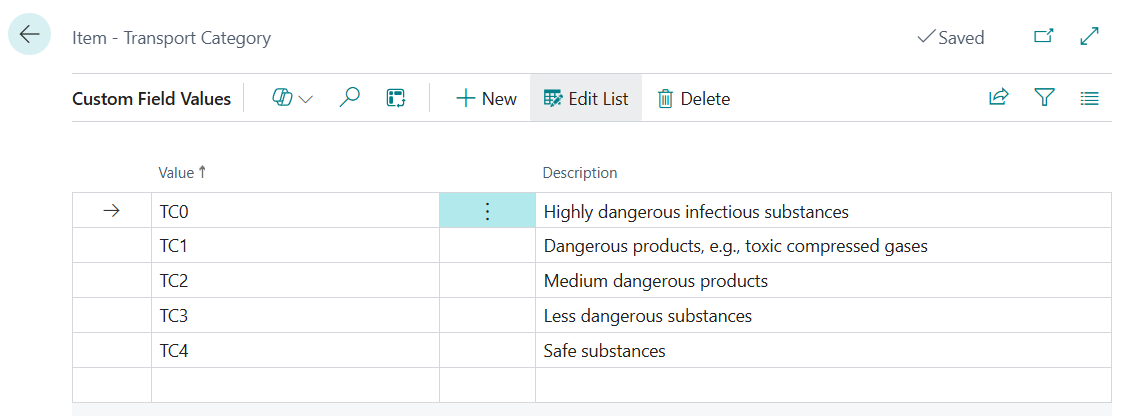
It is also possible to set up a list of valid values for a custom Code field. To edit the valid values for a Code field you can invoke the Custom Field Values action, or drill-down on the No. of Values field.
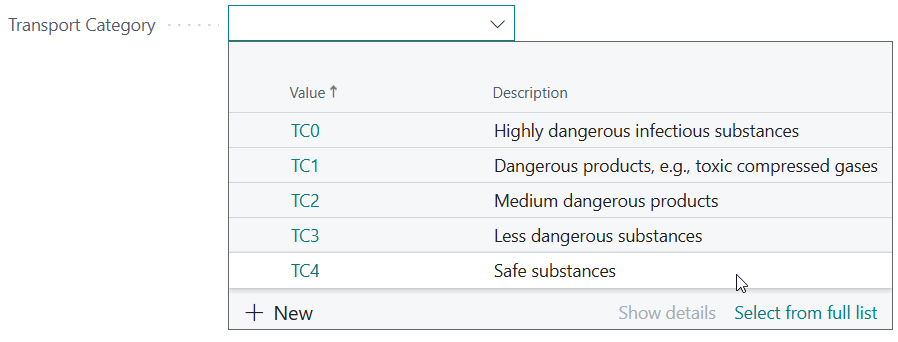
This allows users to lookup the valid field values via the lookup of the custom field:
When needed, it is possible to not validate the code that you enter for a custom field.
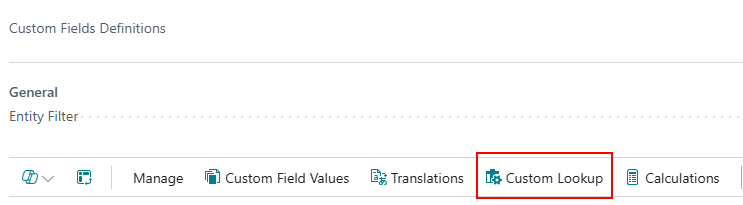
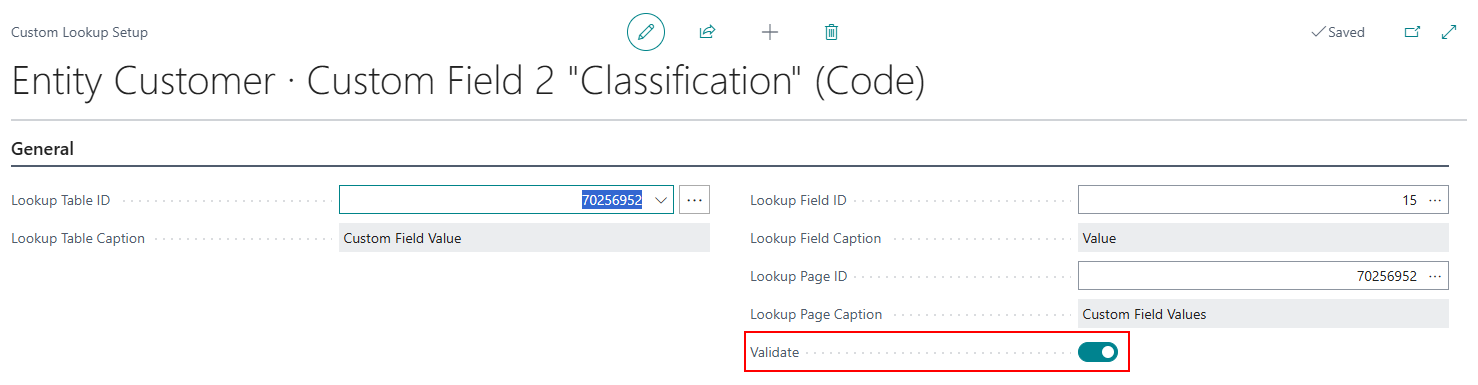
By default, the Validate setting on the Custom Lookup Setup page is enabled, which means that values that are entered on a custom Code field are validated to check if they refer to one of the valid values To adjust the behaviour when needed, open the Custom Lookup Setup page from the Custom Fields Definitions page.
When the Validate setting for a custom Code field is disabled, values that are entered in the field are no longer validated, which effectively means that you can enter whatever value you want.
Date
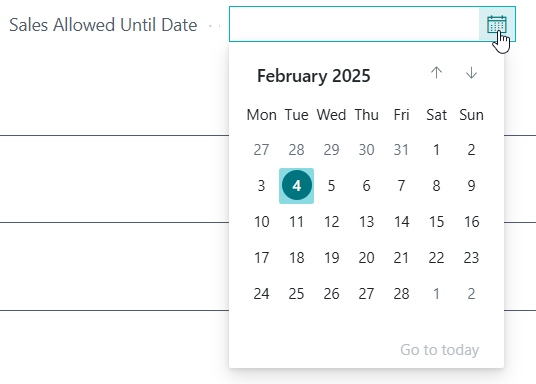
A Date field holds a date value. In the Business Central client this is displayed on pages like any other date field, e.g., in display format based on the region of the user and with a date-picker control to select a date.
Decimal
A Decimal field holds a decimal value, i.e., a number that can have decimal places (in other words, a 'real' number). In the Business Central client this is displayed on pages like any other decimal field, e.g., in display format based on the region of the user.

Integer
An Integer field holds an integer value, i.e., a 'whole' number (in other words, a 'normal' number). In the Business Central client this is displayed on pages like any other integer field.

Text
A Text field holds a textual value. The maximum length of a custom Text field is 250 characters.

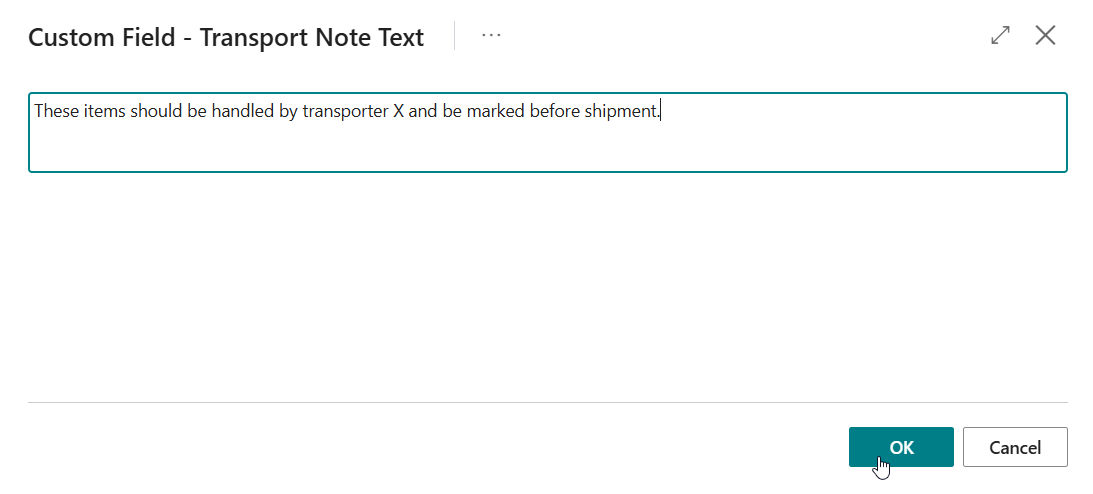
To easily view and edit long text values, custom Text fields additionally get a buttion that will open a page where you can view and edit the full text.
Initial Value
Important
To use this functionality in a Business Central Production environment a subscription for the Custom Fields Pro product is required.
You can test out this feature for free in a Business Central online Sandbox environment.
The Initial Value setting on the Custom Fields Definitions page allows you to set up an initial value that is used for custom fields when a new record is created.
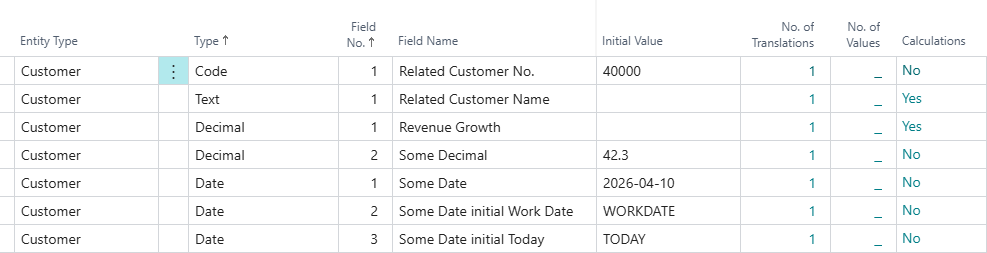
You can also use (filter) tokens, e.g., use WORKDATE as the Initial Value field value to have the custom date field value of new records get initialized with the user's work date.
With the Assist-Edit () button you can quickly select commonly used tokens, such as:
TODAYWORKDATEYESTERDAYTOMORROWWEEKMONTHQUARTERNOW
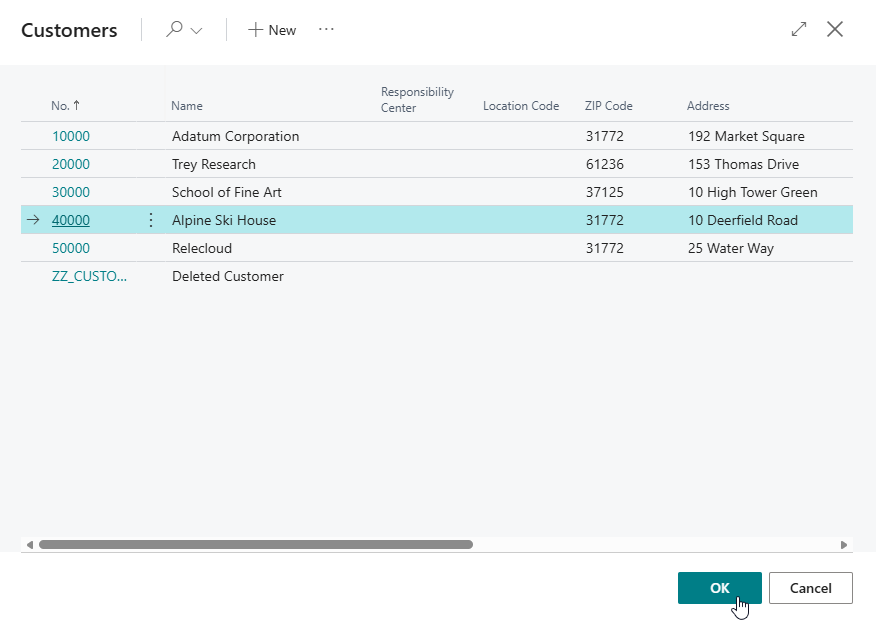
For custom fields of type Code the Assist-Edit () button will open the field's lookup page to select a valid value.

Visibility on Pages
The visibility of the custom fields depend on the visibility configuration. By default, custom fields are visible on card pages and hidden on list pages.
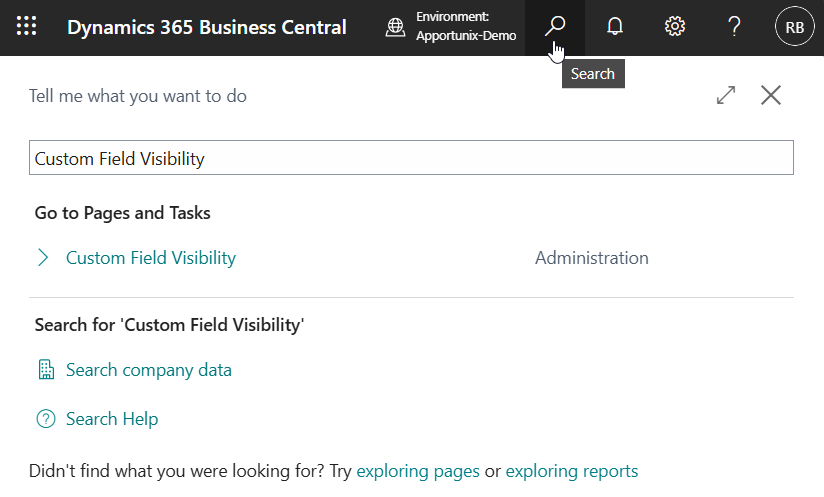
To view and edit the visibility configuration of custom fields, use the Tell Me search feature (Alt+Q, or click on the ‑icon in the top right corner) to search for and open the Custom Field Visibility page.
On this page you can view and edit the visibility of custom fields for pages in Business Central by toggling the value of the Visible field for pages.
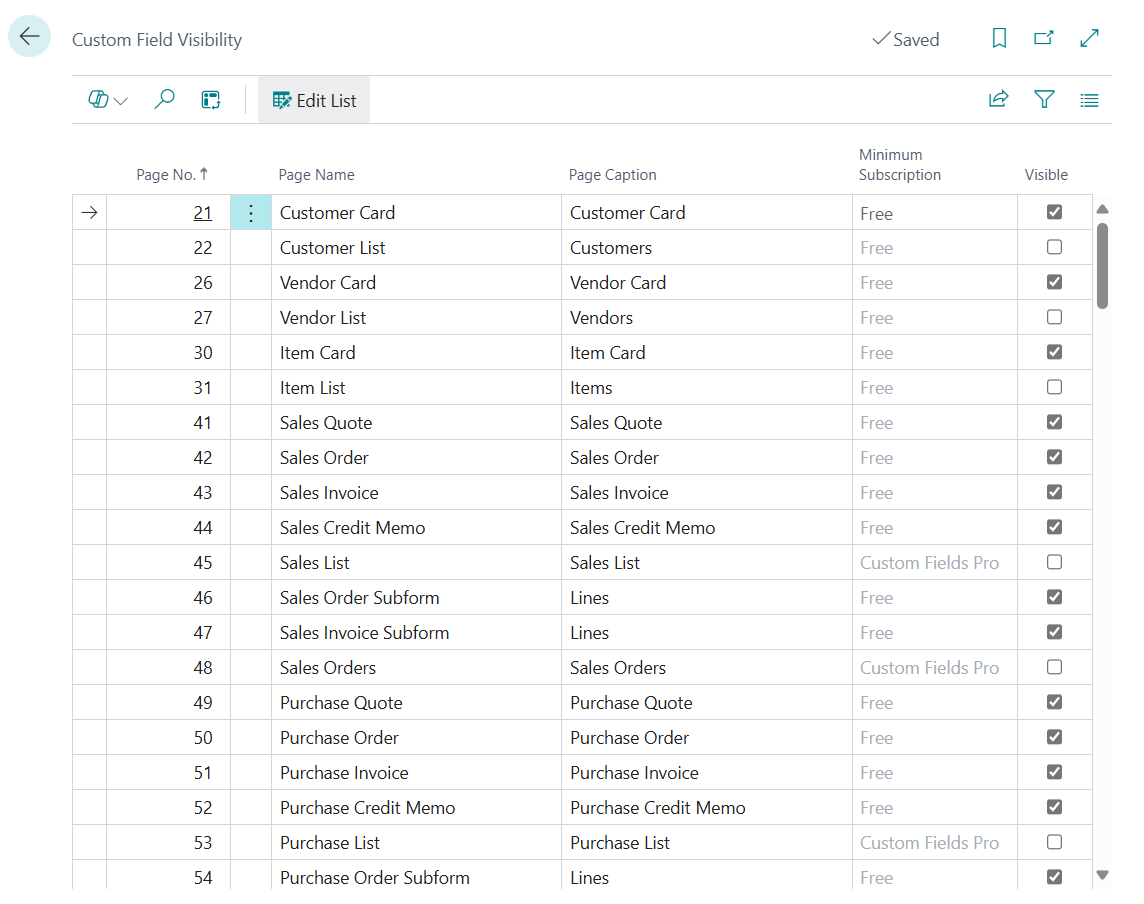
Note that you will not be able to edit the visibility of custom fields for all pages in a Production environment when you are using the Free version of the Apportunix Custom Fields extension. The minimum required version to edit the custom field visibility for a page is specified in the Minimum Subscription field.
Calculated fields on list pages
Note that calculated custom fields (i.e., fields set up with Field Class = Calculated) are not visible nor available as columns on list pages. Accordingly, calculated custom fields are also not available in Analysis Views.
However, you can set up the Display Type of calculated fields so that the field values are visible on the Custom Tiles factbox on list pages, either as FactBox Field or as Tile/Cue.