Headlines
Important
To use this functionality in a Business Central Production environment a subscription for the Custom Tiles & Calculated Values product is required.
You can test out this feature for free in a Business Central online Sandbox environment.
With the Custom Tiles & Calculated Values product it is possible to configure custom headlines on Business Central role centers that can be targeted at specific users/user groups and specific dates/times. You can have custom messages with placeholder values that are substituted by a custom-defined calculated value (which utilizes the same calculation logic that is also used by Role Center Tiles).
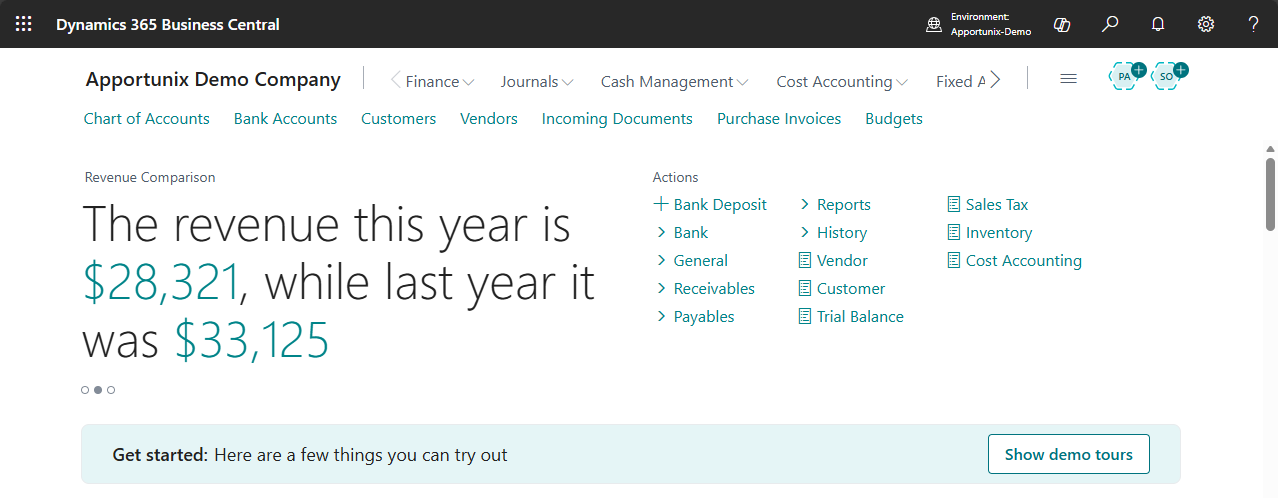
Note
Just like with custom tiles & calculated fields you can also click on headlines to drill-down to see how the calculated value was calculated:
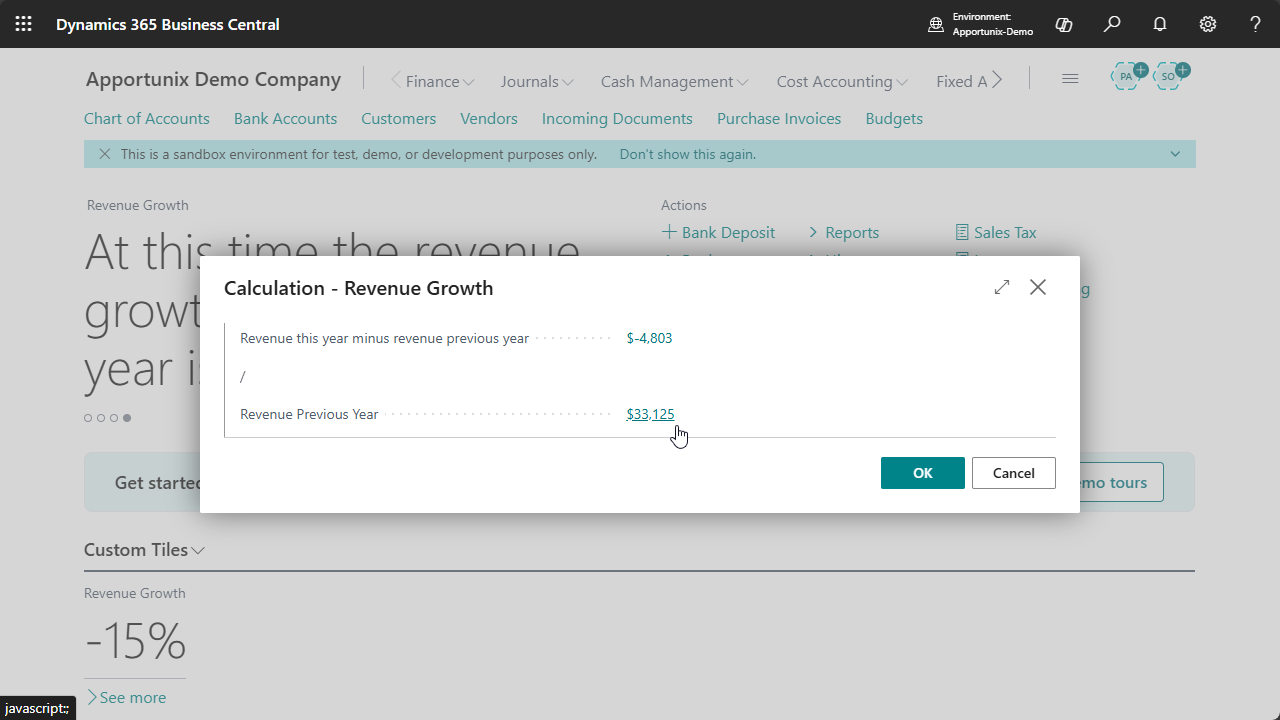
If the calculation was a composite calculation, you can also drill-down further to see how the subcalculation values were computed.
Custom Headline Definitions
To configure your own headlines, use the Tell Me search feature (Alt+Q, or click on the ‑icon in the top right corner) to search for and open up the Custom Headline Definitions page.
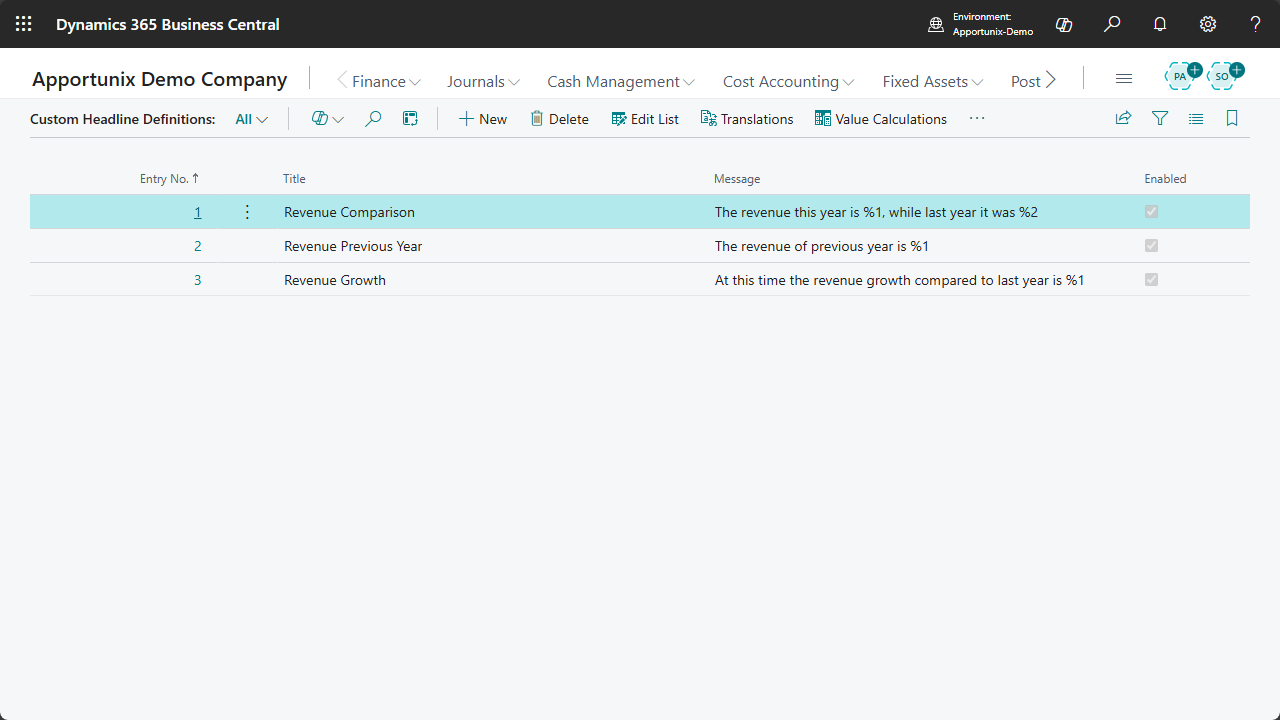
On this page you can use the New action to create and configure a new headline definition. Each custom headline definition has a unique Entry No., which is a positive integer value.
Note
You can configure as many headline definitions as you want, but only the first 10 headline messages that should be visible for the current user at the current date/time will be displayed.
Use the Edit to open the Custom Headline Definition Card to edit the configuration for the selected record.
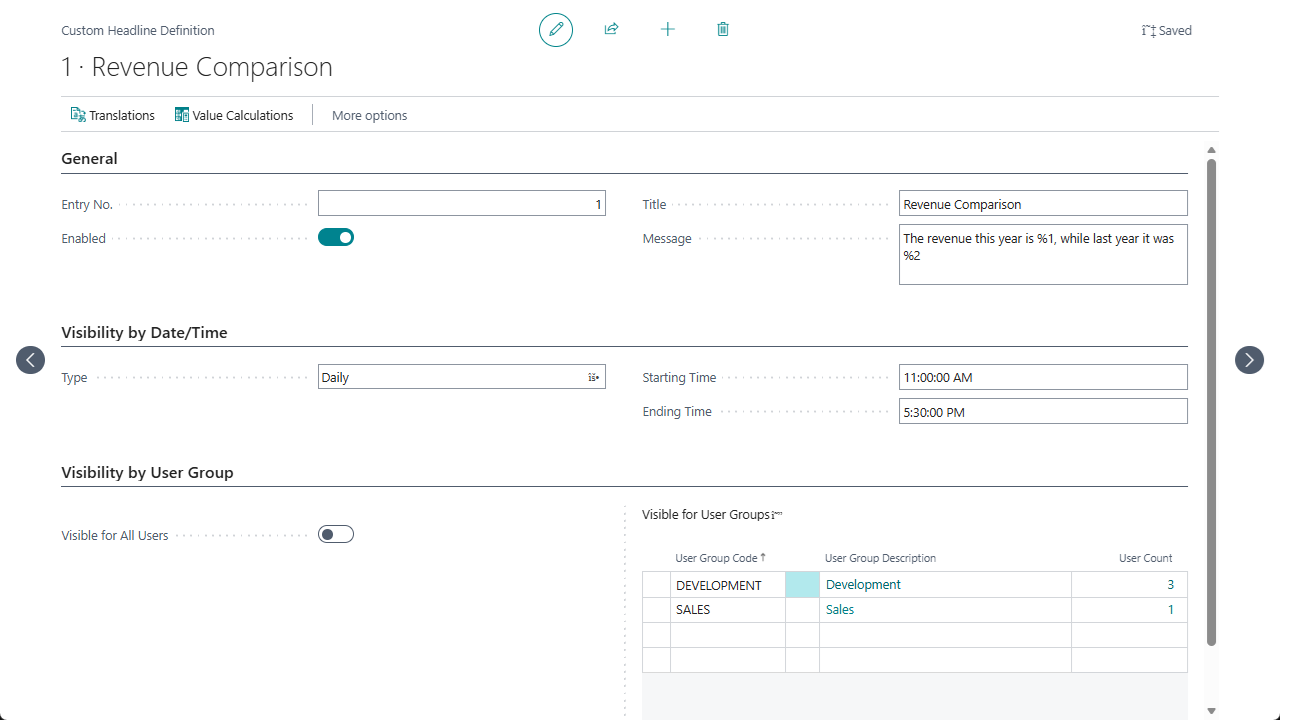
General Settings
In the General group/tab the following settings are available:
-
Enabled
Specifies whether the headline is currently enabled and could be shown to users where applicable.
-
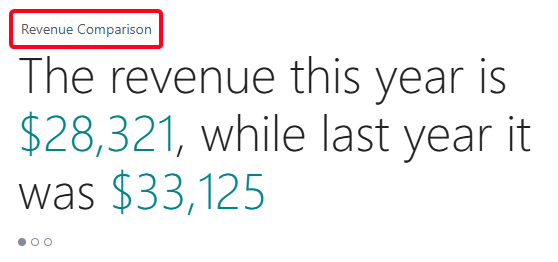
Title
The text that will be displayed at the top of the headline.
-
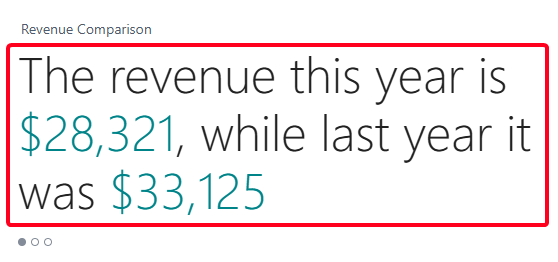
Message
The text that will be displayed as the headline's main message, which can contain placeholders that are substituted by calculated values. You can configure the calculations that will be used via the Value Calculations action.
Visibility by Date/Time
In the Visibility by Date/Time group/tab the following settings are available:

-
Type
Specifies what method is used to determine when the headline should be visible.
Valid options are:
-
Always (Default)
The headline should always be visible, independent of the date/time.
-
Period
The headline should be visible between a specific Starting Date and Ending Date, i.e., a fixed period.
-
Daily
The headline should be visible daily between a certain Starting Time and Ending Time.
-
Weekly
The headline should be visible weekly on specific days, e.g., on a specific day of the week, weekdays, weekend-days.
This can be configured via the Day of Week setting that is available when this option is selected.
-
Monthly
The headline should be visible monthly on specific days, e.g., between the 1st and 14th day of the month.
This can be configured via the Day of Month (Start) and Day of Month (End) settings that are available when this option is selected.
-
Yearly
The headline should be visible yearly, in a specific month between a specific start and end day.
This can be configured via the Month, Day (Start) and Day (End) settings that are available when this option is selected.
-
Last Day of Month
The headline should be visible at the last day of each month.
-
Visibility by User Group
In the Visibility by User Group group/tab the following settings are available:

-
Visible for All Users
Specifies whether the headline should be visible for all users.
If the setting is enabled, then the headline is visible for all users, and if it is disabled, then the visibility is determined via the Visible for User Groups part.
-
Visible for User Groups
Specifies the user groups for which the headline should be visible.
Note that these user groups are defined in tables independent of the Business Central Security Group configuration.
Translations
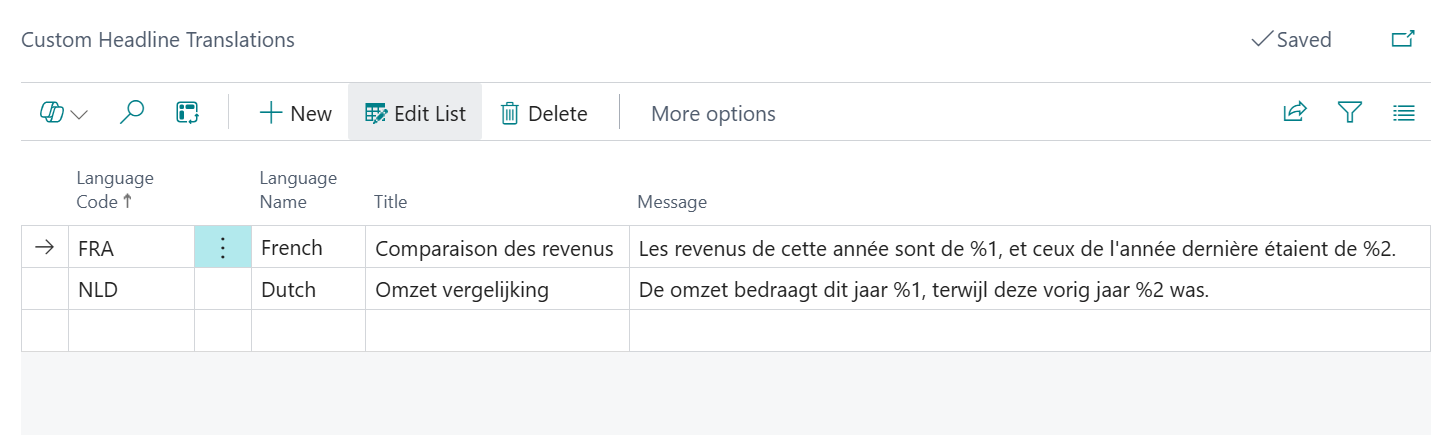
The Title and Message settings on the Custom Headline Definition card page define the default text that is displayed on the headline.
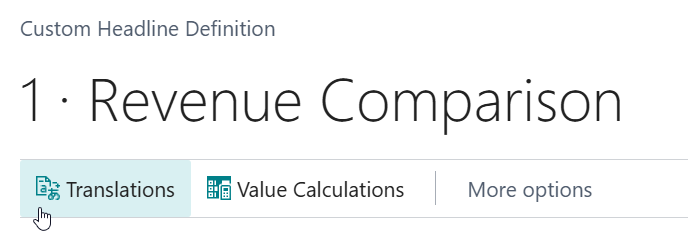
You can use the Translations action to open the Custom Headline Translations page to translate the title and message text in specific languages.
Value Calculations
The Message of a Custom Headline Definition record can contain placeholder values of the form %1, %2, etc., which can be substituted by calculated values.
An example of a Message text with placeholders could be:
The revenue this year is %1, while last year it was %2
where %1 and %2 are placeholders that will be substituted with the calculated value of the revenue this year and revenue last/previous year respectively.
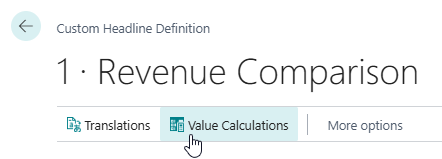
You can use the Value Calculations action to open the Custom Headline Value Calculations page to map the placeholders by Placeholder ID to a Calculation.
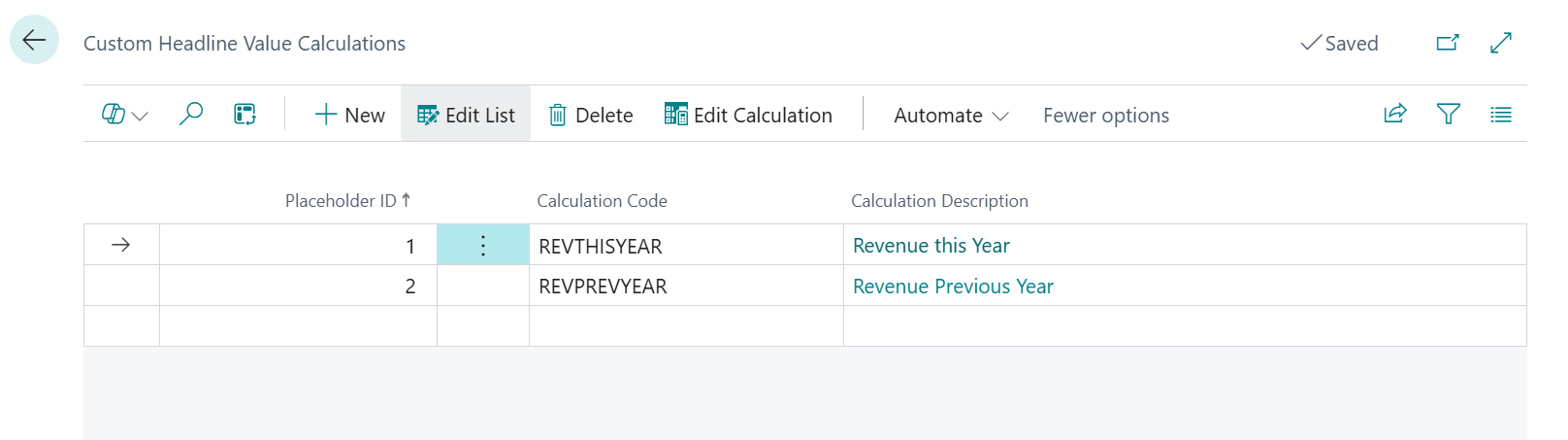
For more information about how to set up the calculations, please see the Calculations section of the user manual.
Available in Role Centers
The headlines you configure on the Custom Headline Definitions list page will be available on the following rolecenter pages:
| ID | Caption | Via Extension of Existing Headline Part |
|---|---|---|
| 9027 | Accountant | Headline RC Accountant |
| 9001 | Accounting Manager | |
| 9023 | Accounting Services RC / Outsourced Accounting Manager | |
| 9077 | Account Receivables | |
| 9002 | Accounts Payable Coordinator | |
| 9018 | Administrator Role Center / IT Manager | |
| 8900 | Administrator Main Role Center | |
| 70257252 | Apportunix | |
| 9004 | Bookkeeper | |
| 9022 | Business Manager | Headline RC Business Manager |
| 9019 | CEO and President Role Center / President | |
| 8901 | Finance Manager Role Center | |
| 8902 | Human Resources Manager RC | |
| 9015 | Project Manager | Headline RC Project Manager |
| 9014 | Project Resource Manager | |
| 9013 | Machine Operator - Manufacturing Comprehensive | |
| 8903 | Manufacturing Manager RC | |
| 9006 | Sales Order Processor | Headline RC Order Processor |
| 9010 | Production Planner / Manufacturing Manager | Headline RC Prod. Planner |
| 8904 | Project Manager Role Center | |
| 9007 | Purchasing Agent | |
| 8905 | Purchasing Manager Role Center | |
| 8906 | Resource Manager Role Center | |
| 9005 | Sales Manager | |
| 8907 | Sales & Marketing Manager RC | |
| 9026 | Sales and Relationship Manager | Headline RC Relationship Mgt. |
| 9024 | Security Admin / Administration of users, security groups and permissions | Headline RC Security Admin |
| 9016 | Service Dispatcher Role Center / Service Manager | Headline RC Serv. Dispatcher |
| 8908 | Service Manager Role Center | |
| 9012 | Shop Supervisor - Manufacturing Comprehensive | |
| 9011 | Shop Supervisor - Manufacturing Foundation | |
| 9020 | President - Small Business | |
| 9028 | Team Member | Headline RC Team Member |
| 9008 | Whse. Basic Role Center / Inventory Manager | Headline RC Whse. Basic |
| 8909 | Warehouse Manager Role Center | |
| 9000 | Shipping and Receiving - Warehouse Management System | Headline RC Whse. WMS |
| 9009 | Warehouse Worker - Warehouse Management System | Headline RC Whse. Worker WMS |